Why Product Order Matters in WooCommerce
It probably goes without saying that the order in which products are displayed is extremely important, largely because it makes it quicker and easier for customers to find the things they actually want.
The organization of products also helps with positioning products strategically, so that customers can see them easily when just browsing. This will help potential customers to stay engaged, rather than feeling overwhelmed, which leads to a better user experience and ultimately, more sales.
WooCommerce does have a few default sorting options, however, there are many limitations with both flexibility and control, as detailed below.
What is visual merchandising in eCommerce and why does it matter?
Traditionally, visual merchandising is the process of creating engaging and aesthetically pleasing in-store displays to attract customers, highlight products and drive sales. It involves strategic placement, lighting, color schemes, signage etc. to enhance the shopping experience and guide the flow of the customer’s journey.
In eCommerce, these same principles apply, just in a digital space. Instead of physical displays, webstores use things such as intuitive layouts as well as strategic placements, such as featured products and curated collections. All of these things, and more, serve as the digital equivalent of eye-catching displays, ensuring a seamless and visually appealing shopping experience.
How to Re-arrange Products in WooCommerce (Classic Default Options)
There are three default ways to rearrange products in WooCommerce:
Option 1 – Using Drag-and-drop:
Once on the WordPress dashboard, navigate to Products > All Products > Sorting. Here, a list of all products will become available. You can then simply hover over the specific product, drag it and then drop it to wherever is required.
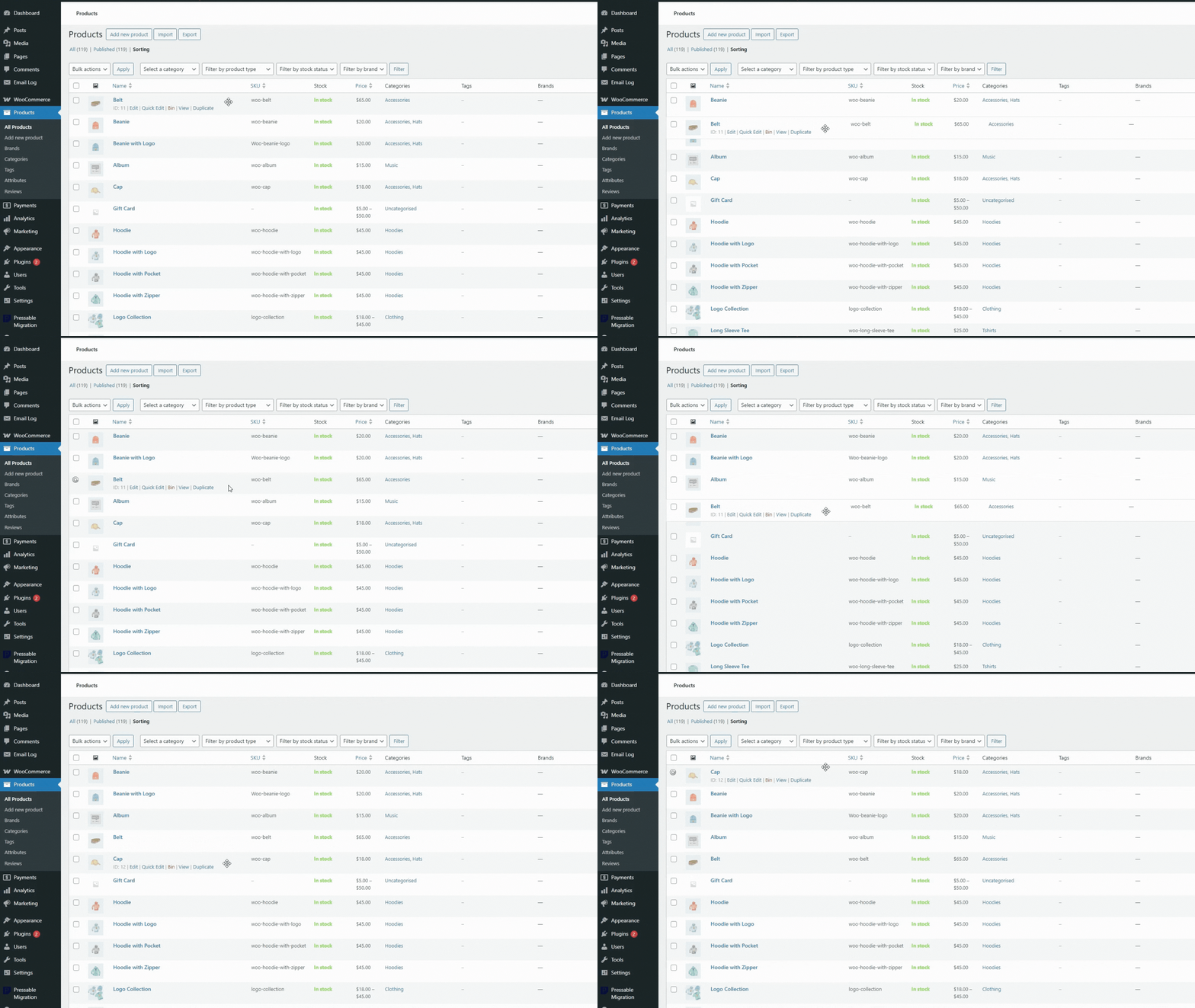
The pros: it’s simple, with no extra plugins required.
The cons: time-consuming for large stores, limited to manual sorting, and applies the same order across all categories.
Option 2 – Sorting by Product Attributes (Price, Date, Popularity, etc.):
Once in the WordPress dashboard, navigate to Appearance > Customize. Once here, select Product Catalogue and then search for ‘Default Product Sorting’. Decide which sorting option you would like to use and select it. Then click ‘Publish’ to complete the process.
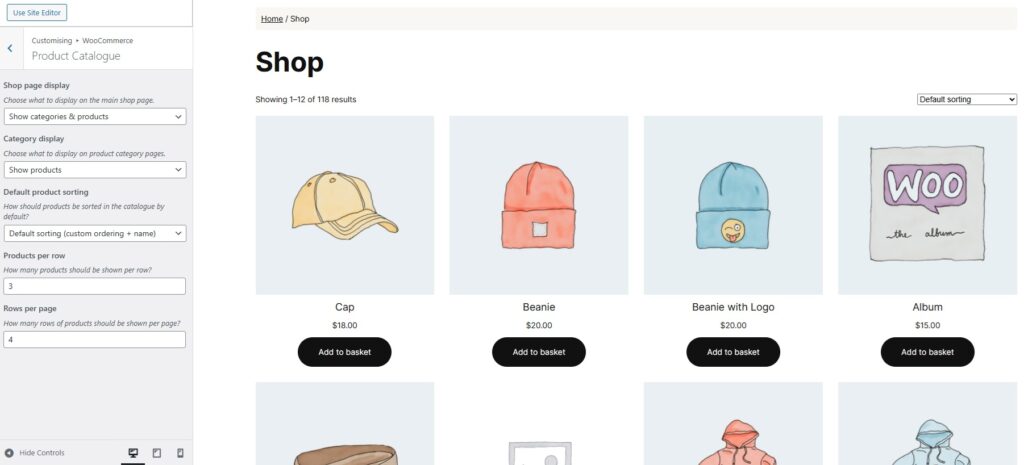
The pros: offers very quick, automatic sorting.
The cons: lacks any custom control, as well as category-specific sorting.
Option 3 – Setting a Menu Order for Individual Products:
Once on the WordPress dashboard, navigate to Products > All Products. Hover over the product you wish to order and click on ‘Edit’. Next, navigate to the products Data Section and select the ‘Advanced’ tab. Here, you’ll see a dropdown labelled ‘Menu Order’.
Using this field you then assign each product with a number, of which the lowest will appear the highest in the menu. If you have two or more products that share a number, they will then be arranged alphabetically.
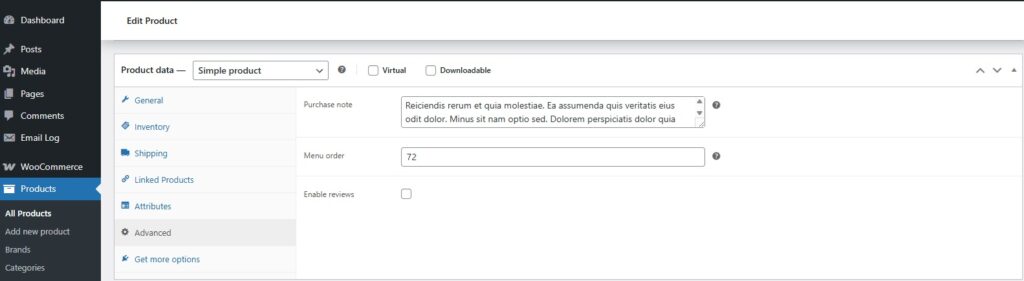
The pros: a simple way to organise a small store, with no extra plugin required.
The cons: very time consuming, especially for larger stores, as you will need to open and manually add a number to every single product.
How to Re-arrange Products in WooCommerce (non-FSE Default Options)
If your store is running on a block-based theme using the Full Site Editor (FSE), you won’t see the old Appearance → Customize → Product Catalog menu. Instead:
Go to Appearance → Editor → Templates → Product Archive (or Shop Page).
Select the Products (Beta) block or Collections block.
Under Settings, you’ll see the same sorting options (by price, date, popularity, etc.) that used to live in the Customizer.
The other two methods — drag-and-drop sorting under Products → All Products → Sorting and setting a menu order for individual products — still work the same way.
The main difference with FSE is simply where you configure the defaults.
The pros: you can see the items rearrange in the back-end in real time
The cons: reordering will only be within that one block and is limited in what you can actually do, the blocks are in beta and evolving all the time and subject to change
What are the Limitations of WooCommerce’s Default Sorting Options?
Unfortunately, there are many limitations with all three options of WooCommerce’s default sorting:
- Lack of Control: You cannot fully customize how products are displayed beyond WooCommerce’s default sorting rules.
- No Category-Specific Sorting: Sorting applies to the whole store, rather than being category or tag-specific.
- Manual Sorting is Tedious and Time-Consuming: Dragging and dropping large product inventories is inefficient and takes a huge amount of time to do.
- No Easy Way to Promote Featured or Seasonal Products: There is also no built-in method to highlight things such as limited time offers, or best-selling products at the top of categories.
- Limited Impact on SEO: Default sorting doesn’t allow optimization based on top-performing products, which can potentially affect search rankings.
Examples of when WooCommerce’s Default Sorting Options won’t work so well:
Example 1: If you would like seasonal products to appear higher in a seasonal category, pushing them up the ranking might make them appear on page 1, which is great around the holiday period, but not so great in July! Implementing this work can be difficult and tedious, which will then require to be undone only a few months later.
Example 2: If you would like a certain product to be in the first position on a sub-category page, but not on the main category page, for example, you might want ‘Black Decking Paint’ to be at the very top under a sub-category for ‘Decking Paint’, but don’t want it in the first position under the main category page of ‘Exterior Wood Protection’.
Example 3: If you have new products you wish to push to a top position, but have a huge product catalogue consisting of hundreds of other items to click and drag through, moving them around could take a very long time – not only that, but you will also have no way of easily seeing where the pagination occurs, resulting in a little bit of guesswork.
How the WooCommerce Product Sorting & Re-Ordering Plugin Solves These Issues
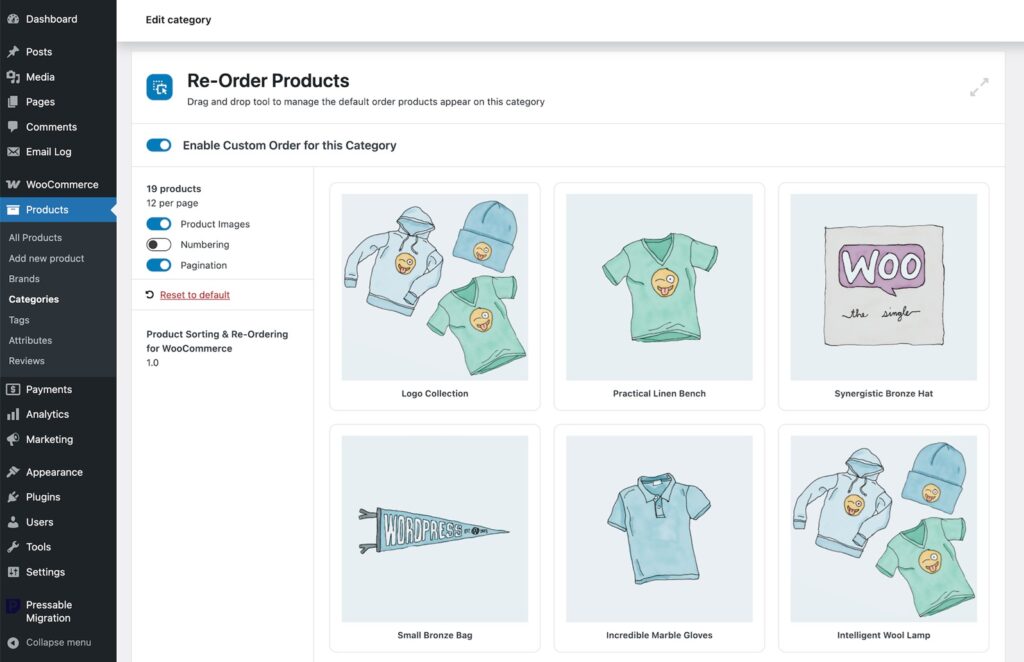
The use of a custom sorting plugin can enhance store organisation and improve conversions:
Drag-and-Drop Sorting Made Easier: A far more intuitive drag-and-drop interface that’s much easier to manage, even for large stores.
Custom Sorting Per Category, Brand or Tag: Set unique sorting orders for specific categories, brands or tags, rather than applying the same blanket rule storewide.
Prioritise Best-Sellers & Seasonal Promotions: Quickly and easily reorder products for special sales, big deals such as Black Friday, or to promote the arrival of new items.
Faster Bulk Sorting: Save admin time and hassle, by sorting multiple products efficiently, instead of dragging them one by one.
Easily See Where Pagination Occurs: See exactly where pagination falls, allowing you to strategically place products that might otherwise get pushed on to the following page.
SEO & Conversion Benefits: Highlighting the best-performing product/s first can increase click-through rates and help improve rankings.
WooCommerce Default Sorting vs. Product Sorting & Re-Ordering Plugin: A Comparison
| Feature | Default WooCommerce | Product Sorting & Re-Ordering Plugin |
| Manual Drag-and-Drop Sorting | ✅ | ✅ (Plus more intuitive interface) |
| Sorting by Price, Date, Popularity | ✅ | ✅ (Plus category-specific sorting) |
| Category-Specific Product Order | ❌ | ✅ |
| Bulk Sorting for Large Stores | ❌ | ✅ |
| Featured & Promotional Product Prioritization | ❌ | ✅ |
| Good for SEO & Conversion Optimization | ❌ | ✅ |
How to Get Started with the Plugin
The Product Sorting & Re-Ordering Plugin is simple and easy to set up with no developer input needed. You can simply add the plugin and begin visually merchandising your store right away.
How to Install The Plugin
- Once you have purchased the plugin from WooCommerce.com:
- Log in to your WordPress dashboard.
- Go to the Plugins menu.
- Click ‘Add New’ and then select ‘Upload Plugin’.
- Upload the plugin file you downloaded (it will be called product-sorting-reordering-for-woocommerce.zip).
- Finally, click ‘Install’ and then ‘Activate’ the plugin.
For further information on the plugin, please see the documentation sheet available on WooCommerce.com.
Conclusion: Take Full Control of Your WooCommerce Product Sorting
Using a plugin that quickly and efficiently reorders and organises products within WooCommerce offers several key benefits over the default versions currently available. It enhances user experience, by allowing customers to find products quickly and easily, which ultimately leads to increased sales and conversions.
The advanced sorting options, such as drag-and-drop reordering, category, brand or tag-based organisation, the ability to prioritise products and see where pagination will occur, provides greater flexibility and control over product displays. Additionally, it saves store owners time by streamlining product management, reducing the manual effort required to keep listings well structured.
Wonderful plugin I recently installed. No issues or conflicts, worked fantastic. I easily sorted my products by category in the order I chose rather than the default WooCommerce setting. Would definitely recommend for someone looking to quickly and efficiently sort there products by dragging and drop option.
– Larry
In summary, this plugin enhances both store functionality and customer satisfaction.